


 Request a blueprint
 Go to developer docs
Integrate a Hero Section
Enterprise plans

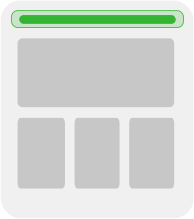
Sometimes you want to just one section of a page to be visually editable, such as for the hero section of a common page, like a collection page.
Model definition
A standard section model named collection-hero is all you need. Name this section based on what kind of page this section is on, such as if it's on a product collection page. Another example is if this section is on a different page type, such as a product page, you may want to use a more fitting name like product-hero.
By default, you don't need any fields. Instead, use targeting to determine if different visitors or pages should see a different hero.
Example code
Notice that RenderBuilderContent is a component you'd make, for example:
Install the Builder React SDK:
Create a new React component; for example, CollectionPage.js, and set up Builder.io in your component:
Import the CollectionPage component and use it in your main React application:
Install the Builder React SDK:
Fetch the hero content:
Install the Builder React SDK:
Paste the following code into a new file within the routes directory called $.tsx, making sure to replace YOUR_API_KEY with your Public API Key.
Replace YOUR_API_KEY with your Public API key.
Ensure that you have configured your routes so that URLs that match the pattern /collections/* are mapped to the collection route. You can do this in your remix.config.js file by adding the following code:
Want the latest and greatest of Remix with Builder? We recommend using Gen 2.
Install the Builder React SDK:
Copy and paste the following code snippet into your file, for example src/routes/collection.js:
Paste the following code into a new file within the routes directory called $.tsx, making sure to replace YOUR_API_KEY with your Public API Key.
Replace YOUR_API_KEY with your Public API key.
Ensure that you have configured your routes so that URLs that match the pattern /collections/* are mapped to the collection route. You can do this in your remix.config.js file by adding the following code:
Want the latest and greatest of Hydrogen with Builder? We recommend using Gen 2.
Install the Builder React SDK:
Paste the following code into a new file within the routes directory called $.tsx, making sure to replace YOUR_API_KEY with your Public API Key.
This example uses SvelteKit.
Install the SDK:
Copy the following into src/routes/collection/collection.js:
Copy the following into src/routes/collections/[collection].svelte:
Install the Builder Vue SDK:
Create a new Vue component; for example, CollectionPage.vue, and set up Builder.io in your component:
Import the CollectionPage component and use it in your main Vue application:
Install the Builder Vue SDK:
Create a new Vue component; for example, CollectionPage.vue, and set up Builder.io in your component:
Import the CollectionPage component and use it by adding it to a page:
Add the following to nuxt.config.js:
If you are using an SSR framework other than Nuxt, you must import the CSS by adding the following to your entry point, before rendering Builder content:
Install the necessary dependencies:
Create a new Qwik component; for example, CollectionPage.tsx and set up Builder.io in your component:
The following App.js code is an example of integrating a collection-hero model. Make sure to replace YOUR_API_KEY with your Public API Key:
Fetch the data with a resolver:
In collection-hero.component.ts, subscribe to the route's resolved data from the resolver, in order to render it in the template.
Update the template to show the collection hero.
Install the Builder React SDK:
Create a new React component; for example, CollectionPage.js, and set up Builder.io in your component:
Import the CollectionPage component and use it in your main Gatsby application:
Make an HTTP GET request to the Builder.io REST API:
Replace {model} with your model name; for example, collection-hero, {your_api_key} with your Public API key, and {url_path} with the URL path you want to target.
For example, using JavaScript Fetch API:
This returns the JSON data for the specified model and URL path.
Use the returned JSON data in your application as required. You can use the data in any front-end framework or library to render the content.
The REST API does not include the rendering part, so you must handle that in your application. The returned JSON data contains the structure and content you can use to build your application's UI.
Import Builder and fetch the collection-hero, making sure to replace YOUR_PUBLIC_API_KEY with your Builder Public API Key.
Install the Builder Angular SDK:
In your Angular application, open app.module.ts and import the BuilderModule:
Make sure to replace YOUR_API_KEY with your own Builder.io Public API key.
Create a new Angular component; for example, collection-hero with the Angular CLI.
Set up Builder.io in your collection-hero component:
Update the component template to include the BuilderComponent:
Import the CollectionPageComponent and use it in your main Angular application: